Showing posts with label Forms and Reports. Show all posts

Wednesday, June 20, 2012

How to fix "Changes made in uifont.ali file through Enterprise Manager are not visible to in-process Reports Server"


In the name of Allah, Most Gracious, Most Merciful.

In this article I will describe how to fix "Changes made in uifont.ali file through Enterprise Manager are not visible to in-process Reports Server" issue. This bug is present in Oracle Reports 11g. Font Subsetting, Font Aliasing and Font Embedding modification through Enterprise Manager does not effect to in-process reports server.

There are two workarounds for this.

1. Actually, Enterprise Manager (EM) writes changes to the uifont.ali file located in following directory :
%INSTANCE_HOME%\config\FRComponent\frcommon\TOOLS\common

Although the standalone Reports Servers read from this file, the in-process Reports Server reads the uifont.ali file located in the following directory:
%ORACLE_HOME%\tools\common
2. By default the "UI" key in registry has the value :
%ORACLE_HOME%\tools\common
Add the directory "%INSTANCE_HOME%\config\FRComponent\frcommon\TOOLS\common" to this key. For example by default it is as follows :
D:\oracle\Middleware_dev11g\dev11g\tools\common

Change it as follows :
D:\oracle\Middleware_dev11g\dev11g\tools\common;D:\oracle\Middleware_dev11g\dev11g_inst\config\FRComponent\frcommon\TOOLS\COMMON

See Oracle Note 965582.1

Insha-Allah this will help and serve the purpose. For any corrections and improvements please suggest.


Tuesday, May 15, 2012

How to resolve “Java has discovered application components that could indicate a security concern”

In this article I will describe how to resolve “Java has discovered application components that could indicate a security concern” issue.

Figure - 1

The cause of this warning is that your application contains both signed and unsigned java code. From JDK 6 update 19 this security check is added. To get rid of this warning message you should use either all signed java code or all unsigned java code. Mix of signed and unsigned java code will raise this warning.

Below is the procedure of signing the jar file. This method is valid for Forms 11g.

  1. Backup and open the file “ORACLE_INSTANCE\bin\sign_webutil.bat” in a notepad. 
  2. Search for “KEYSTORE_PASSWORD=<Your KEYSTORE password>”. Replace <Your KEYSTORE password> with your password. e.g. KEYSTORE_PASSWORD=MyPassword  
  3. Search for “JAR_KEY_PASSWORD=<Your private key password>”. Replace <Your private key password> with your password. e.g. JAR_KEY_PASSWORD=MyJarPassword 
  4. Search for "SET KEYSTORE="%HOMEDRIVE%%HOMEPATH%/.keystore" change HOMEDRIVE and HOMEPATH variables with values according to your environment and locate your keystore file. e.g. KEYSTORE="K:\Oracle\Middleware\user_projects\domains\ClassicDomain\config\fmwconfig\servers\WLS_FORMS\.keystore". If you don’t know the password then rename the existing .keystore to somename.keystore and signing process will create new .keystore file with the key and password provided by you in steps 1 and 2. 
  5. Now sign the jar file with the following command.
ORACLE_INSTANCE\bin\sign_webutil.bat %ORACLE_HOME%\forms\java\jacob.jar

Where 
ORACLE_INSTANCE=K:\Oracle\Middleware\asinst_6 and
ORACLE_HOME=K:\Oracle\Middleware\as_1 set these variables according to your environment.

Repeat these steps for all jar files used in your application the restart the forms managed server.

Insha-Allah this will help and serve the purpose. For any corrections and improvements please suggest.


Tuesday, May 8, 2012

How to fix "REP-69: An internal error occurred while reading the image - Unable to render RenderedOp for this operation"

In the name of Allah, the most Beneficial, the most Merciful

In this article i will be describing How to fix "REP-69: An internal error occurred while reading the image - Unable to render RenderedOp for this operation". 

Some times pages of output report on web displayed black and error occurs while running report REP-69: An internal error occurred while reading the image - Unable to render RenderedOp for this operation.

This problem occurs when an image is used in the report without setting the OUTPUTIMAGEFORMAT variable. Set OUTPUTIMAGEFORMAT=GIF in the URL/command line or environment variable. Also set REPORTS_DEFAULT_DISPLAY=NO in environment variable. This should be specified in OS's environment variable on which report server is installed. Restart report server to incorporate changes.

Insha-Allah this will help and serve the purpose. For any corrections and improvements please suggest.


Sunday, March 4, 2012

How to write Webutil dlls in user's home directory

In the name of Allah, the most Beneficial, the most Merciful

In this article i will be describing "How to write Webutil dlls in user's home directory". Its need arises in Window 7 where normally users don't have write access to JRE directory and Webutil by default write its dlls in JRE\bin directory. These dlls are as follows.

1. jacob.dll
2. d2kwut60.dll
3. JNIsharedstubs.dll

Open the webutil.cfg file. You can find its location by finding the WEBUTIL_CONFIG parameter in default.env file. Look for "install.syslib.location.client.<os>" parameter in webutil.cfg file. Set this parameter to the directory where you want webutil to download its dlls. If you specify the absolute path then files will be download as indicated and if you specify relative path then files will be downloaded in users home directory + your specified path. Replace "<os>" tag with 0 in-case of windows and with 1 in-case of linux. Normally clients are on windows. You can specify values as follows.

install.syslib.location.client.0=webutil\syslib

Insha-Allah this will help and serve the purpose. For any corrections and improvements please suggest.


Saturday, February 11, 2012

How to Install and Upgrade Oracle 11g Forms and Reports 11.1.1.2.0 on Microsoft Window 7 Professional

In this article I will describe "How to Install Oracle 11g  Forms and Reports 11.1.1.2.0 on Microsoft Window 7 Professional 32-bit" and then "How to Upgrade it to Oracle 11g  Forms and Reports 11.1.1.3.0".

Download Forms and Reports 11.1.1.2.0, its patch 11.1.1.3.0 and Oracle WebLogic Server 10.3.5 for Microsoft Windows 32-bit from oracle website .

First of all you need to install Oracle WebLogic Server. You can find its installation on Red Hat Linux here. You can easily install it on Windows.

Extract the installation files and run the setup from Disk1.

Figure - 1


Click Next button.


Figure - 2

Select "Install Software - Do Not Configure" option and click Next. Don't Configure at this stage because 11.1.1.2.0 has compatibility issues with WebLogic Server 10.3.5.


Figure - 3

Click Next button.


Figure - 4

Specify the Middleware home which is created during WebLogic Server Installation and click Next button.

Figure - 5


Uncheck the support checkbox and click Next button.


Figure - 6

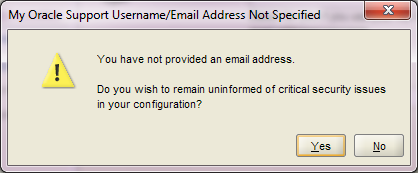
Click Yes button.


Figure - 7

Click Install button.

Figure - 8

View progress.

Figure - 9

Click Next button.

Figure - 10

View summary and click Finish to finish installation of Oracle Forms and Reports 11.1.1.2.0. Extract the patch set 11.1.1.3.0 and run the setup.


Figure - 11

Click Next button.


Figure - 12

Specify the Middleware home which is created during WebLogic Server Installation and click Next button.

Figure - 13

Uncheck the support checkbox and click Next button.

Figure - 14

Click Yes button.

Figure - 15

Review the summary and click Install button.

Figure - 16

View progress.

Figure - 17

Click Next button.

Figure - 18

Review the summary and click Finish button to finish the installation of patch set 11.1.1.3.0. Select the "Configure Classic Instance" from "Start -> All Programs - > Oracle Classic 11g - Home1" Menu.


Figure - 19

Click Next button.

Figure - 20

Click Next button.

Figure - 21

Provide User Name and Password for new domain and click Next button.

Figure - 22

Uncheck the support checkbox and click Next button.

Figure - 23

Click Next button.

Figure - 24

Click Next button.

Figure - 25

Click Next button.

Figure - 26

Click Next button.

Figure - 27

Provide proxy information or you can disable it as well and click Next button.

Figure - 28

Click Next button.

Figure - 29

Review the summary information and click Configure button.

Figure - 30

View progress.

Figure - 31

View progress.

Figure - 32

Oracle Forms and Reports 11g 11.1.1.3.0 is configured successfully.

Insha-Allah this will help and serve the purpose. For any corrections and improvements please suggest.